




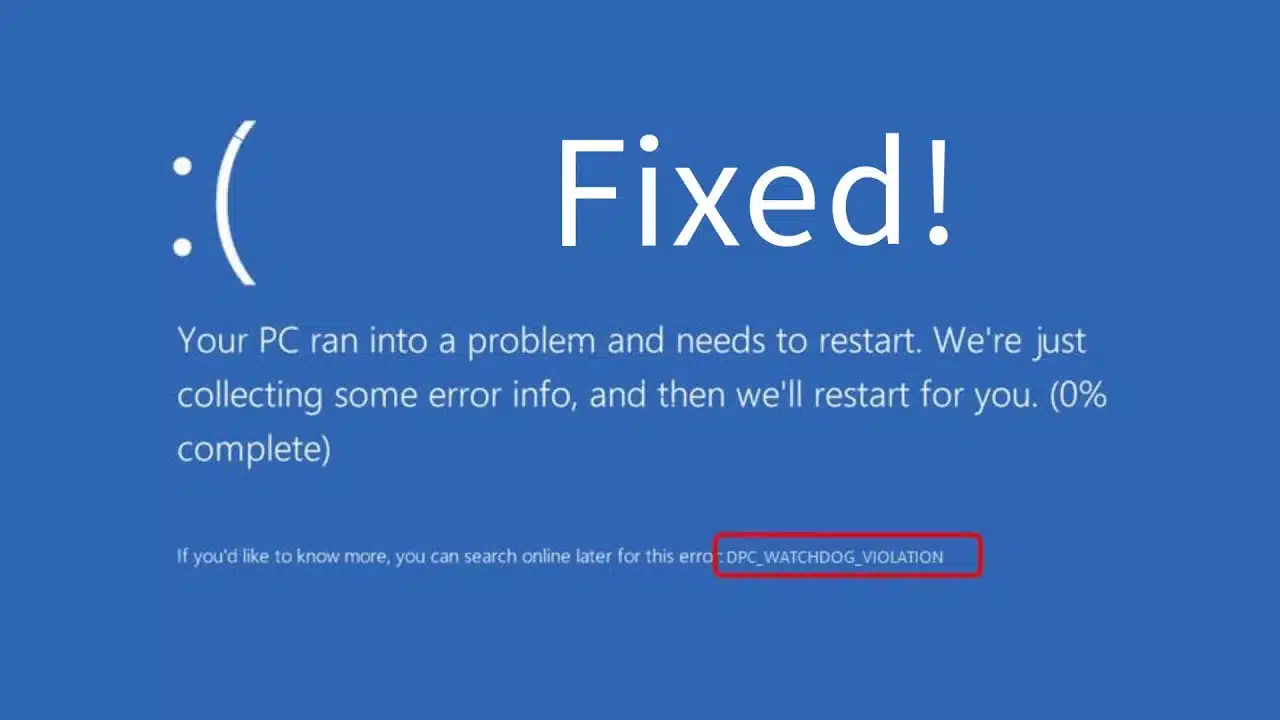
If your PC freezes, makes unusual noises, shows a blue screen with a DPC_Watchdog_Violation error, and then restarts, it usually means Windows detected a serious problem that needs attention. This error is common on Windows 10 and Windows 11. In this guide, you’ll learn why it happens and how to fix it step by step.
The DPC Watchdog Violation often appears randomly but keeps coming back on affected systems. Microsoft has released updates to reduce this issue, though it can still occur due to outdated drivers, corrupt system files, or faulty hardware. Understanding what triggers this error will help you fix it and prevent it from happening again.
Table of contents
What is the DPC Watchdog Protocol?
The DPC Watchdog is a built-in Windows feature that monitors the performance of Deferred Procedure Calls and helps prevent system crashes. Its job is to track execution time and detect delays that could affect system stability. When a driver is outdated, software becomes corrupt, or hardware starts failing, the Watchdog can trigger a DPC_Watchdog_Violation error.
Main Causes of DPC Watchdog Violation
Before you jump to the solutions, it’s important to figure out what’s causing the problem. Once you know the source, fixing it becomes much easier. Here are the most common reasons behind this blue screen error.
- Faulty Portable device: If your portable device is not responding to your system, you will see a Blue Screen and your system will restart.
- Corrupt drivers: If you have manually updated your drivers from unauthorized sources.
- Hardware issue: If your Hard Drive or graphics card is not properly installed or damaged.
- Software Conflict: If your recently installed software conflicts with your system files.
- Malware Attack: A malware attack can temper your internal system files, causing the system to show a Violation screen.
- BIOS Issue: If your BIOS settings are incorrectly configured, you will see this error.
- Memory Overload: Faulty RAM can cause system instability and lead to DPC Violation.
How to Quickly Fix DPC Watchdog Violation in Windows 10 or Windows 11
After identifying the root cause of the Violation screen, it is time to fix this issue on your computer. Carefully follow these methods as mentioned below. The first ones are the quickest, while the latter options take significantly more time.
Undo Changes
Remember, what was the last change that you made to your PC? Like any Hardware Change, software installation, or driver update. If you know what your last change was, undo it; most Windows users found that it fixed their issue. If you don’t know what your last change was, go through other methods.
Remove Portable Devices
Disconnect all portable devices (e.g., external storage, data cables, USB devices) from your system. These devices conflict with the system, leading to DPC Watchdog Violation errors. To rule out this possibility, remove all external devices:
- Unplug all non-essential USB devices (Printers, USB drives, cameras).
- Restart your computer without any external devices connected
- Now connect your devices one by one to identify if a specific device is causing the issue.
If your PC works fine without external devices, one of them is the cause of the problem. Updating their drivers or replacing faulty ones will resolve this issue.
Update Your PC
Microsoft releases new updates to fix these types of bugs. If your computer is not updated with the latest version, update it now. A few months ago, a third-party security update caused a Blue Screen of Death on millions of PCs worldwide. So, you need to check for these types of News and keep your PC updated. Follow these steps to update your PC:
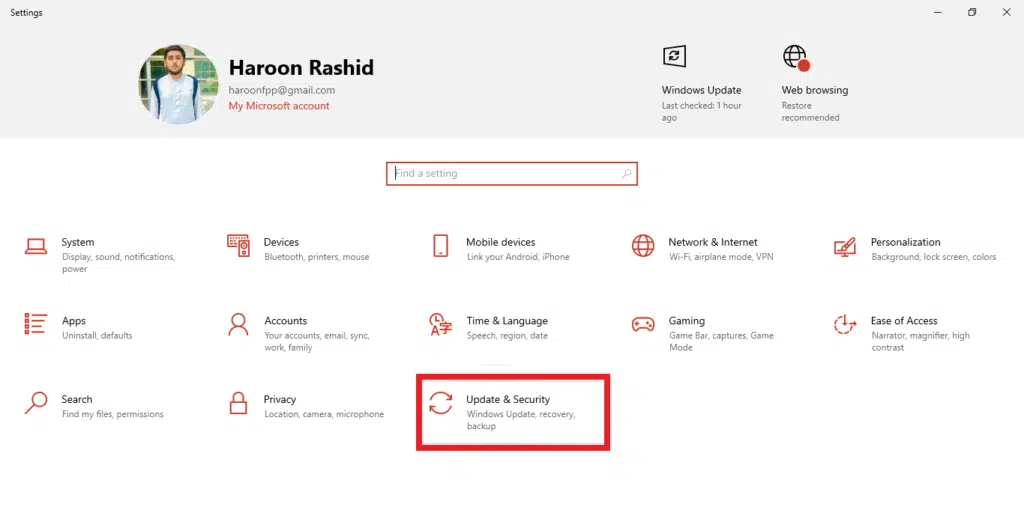
- Press
Windows + Ito open Settings. - Navigate to “Update & Security” from the bottom
- Click on “Windows Update” from the left sidebar and select “Check for updates“.
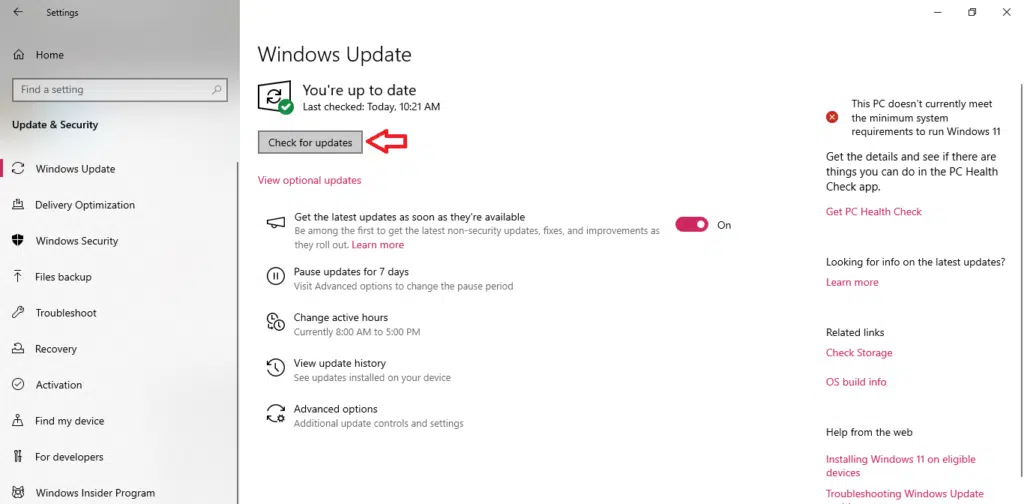
- Install available updates, and restart your computer to see if the problem is resolved. I hope your issue is resolved now.
Update Drivers
Does the error still persist? This might be due to incompatible/misconfigured drivers that are manually installed on your PC. These drivers conflict with Windows system files, causing a DPC Watchdog Violation BSOD error. You need to install/update Authorized drivers on your PC.
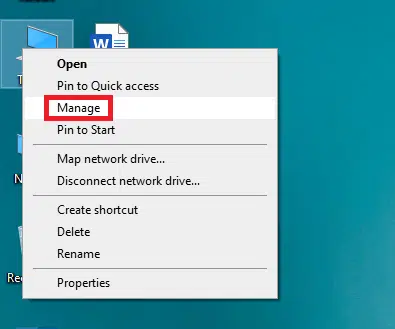
- Right-click on “This PC” on the Desktop and select “Manage.”
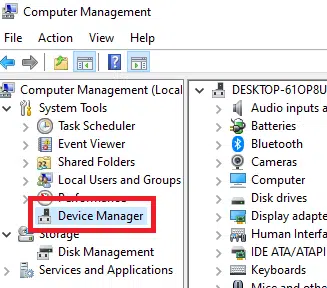
- Navigate to “Device Manager” from the left sidebar.
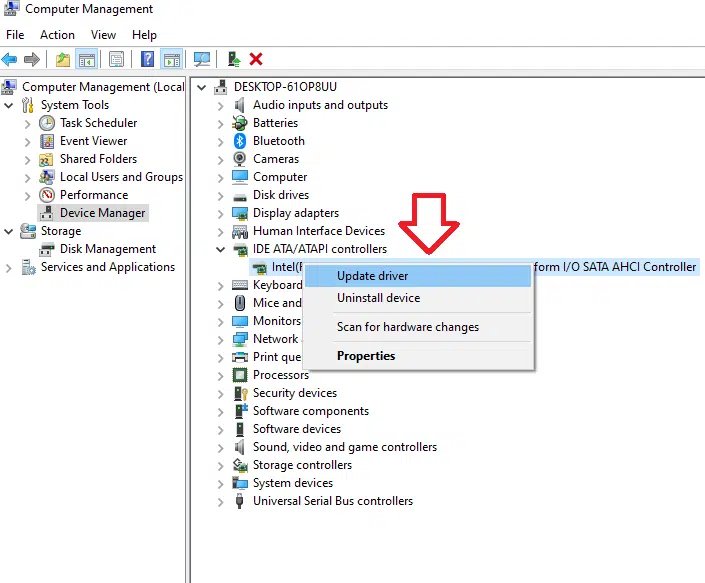
- Search for “IDE ATA/ATAPI controllers”.
- Right-click on this option and click on “Update Drivers”.
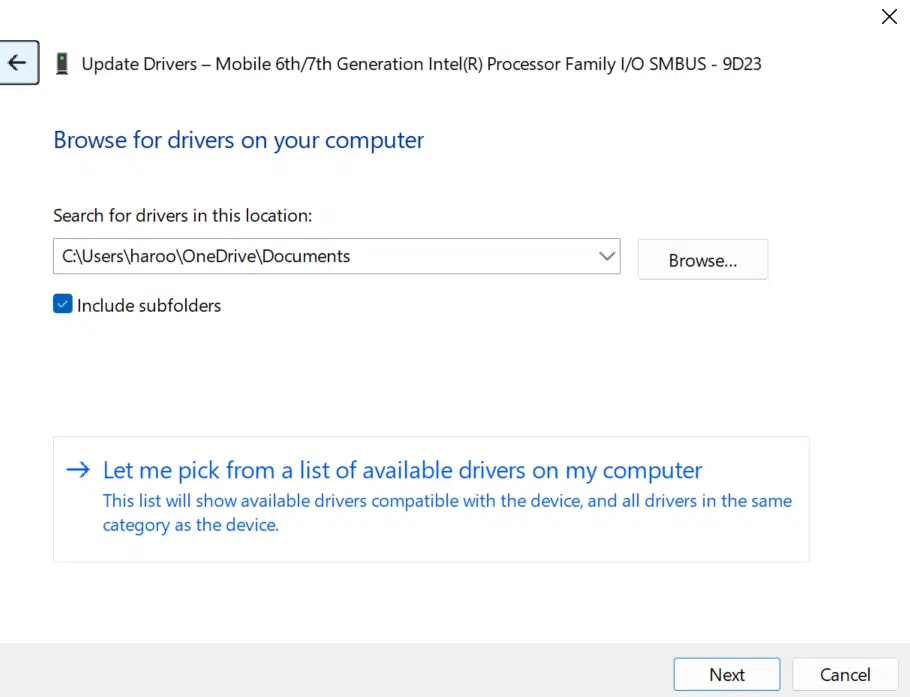
- Click on “Browse my Computer for Drivers”, then select “Let me pick from a list of available drivers,” and choose “Standard SATA AHCI Controller.”
Many users have reported that this method fixed their problem. I also ran into a similar issue a few months ago while updating my Android phone through my PC. As soon as I connected the device, the screen blinked, showed a blue screen for a second, and the computer restarted. After checking, I realized I had installed the wrong driver for my phone. Once I removed it and installed the correct driver, the issue was gone.
Scan System Files with Windows Defender
If the error still appears, your system files might be corrupted because of a malware attack. You should scan your computer for viruses and then run a System File Check (SFC) to look for and repair any damaged files.
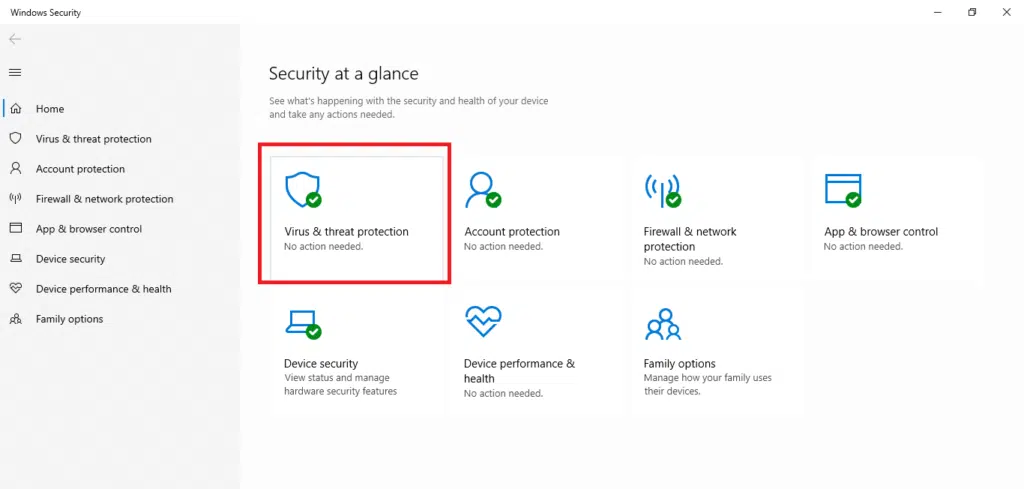
- Open Windows Security on Your PC
- Navigate to “Virus and Threat” Protection.
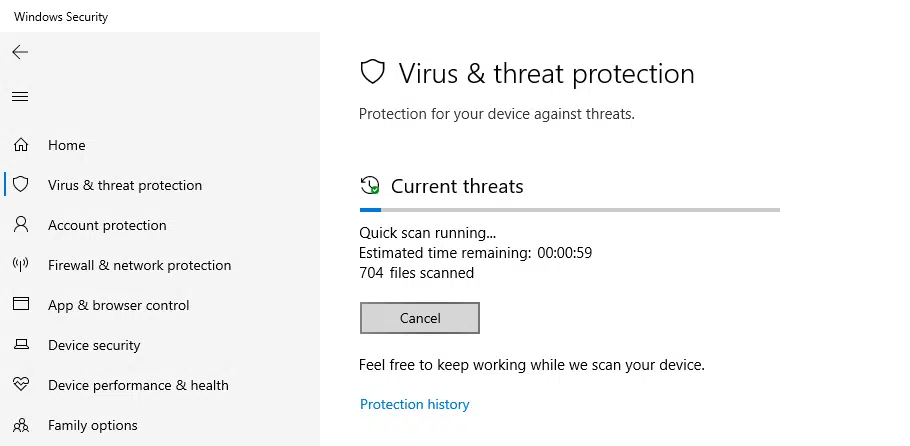
- Run a quick scan
After that run the System File Check (SFC) to verify the integrity of all the content on your device.
- Open the Command Prompt as an Administrator
- Type
sfc /scannowin cmd and press Enter.
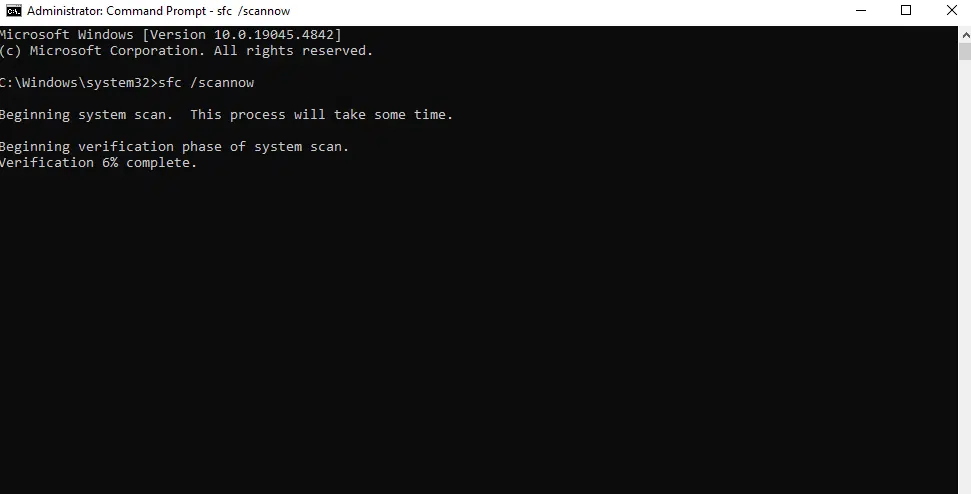
- The tool will begin scanning and automatically repair any corrupted files.
- Restart your computer after the scan is complete.
If it finds any corrupted files, the tool will repair them. Then you have to restart your PC so that the changes can take effect. If you do not, then you can close the Windows.
Remove Unnecessary Programs
Unauthorized and Unnecessary software often conflicts with the system files, leading to system instability. You can overcome this possibility by removing unnecessary Apps from your Windows.
- Press WIN+I to open the settings.
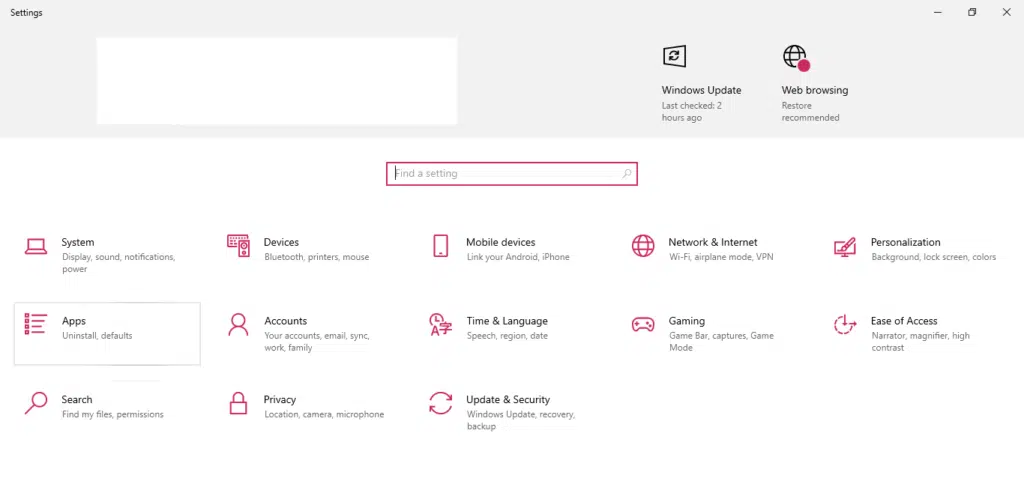
- Navigate to Apps
- Scroll through the list of installed applications and uninstall any software that might be causing the issue.
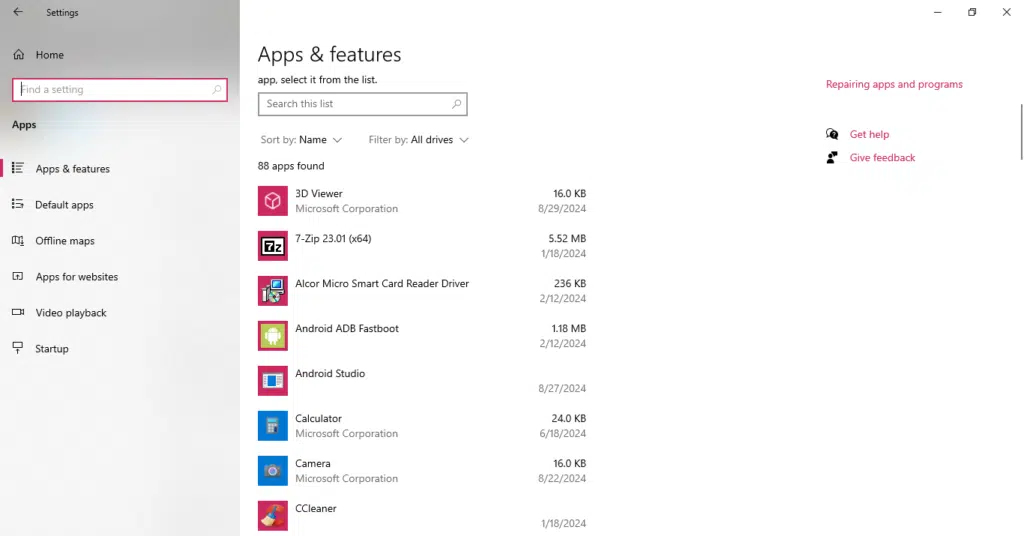
- Restart your computer after removing the software.
Never install unauthorized or cracked software because it is often patched with viruses and can damage your hardware.
Reset Your PC
If all else fails, resetting your PC is the last resort. You have to reset your PC to go back to the original state. It will give your PC a fresh look.
- Open Your Settings and Navigate to “Update & Security”.
- Select “Recovery” from the left sidebar
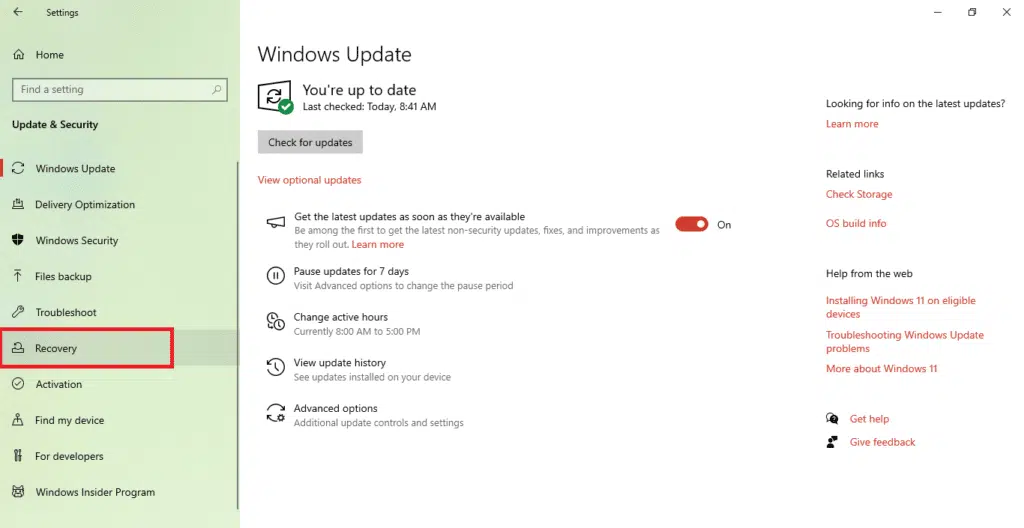
- Click on Get Started under “Reset this PC.”
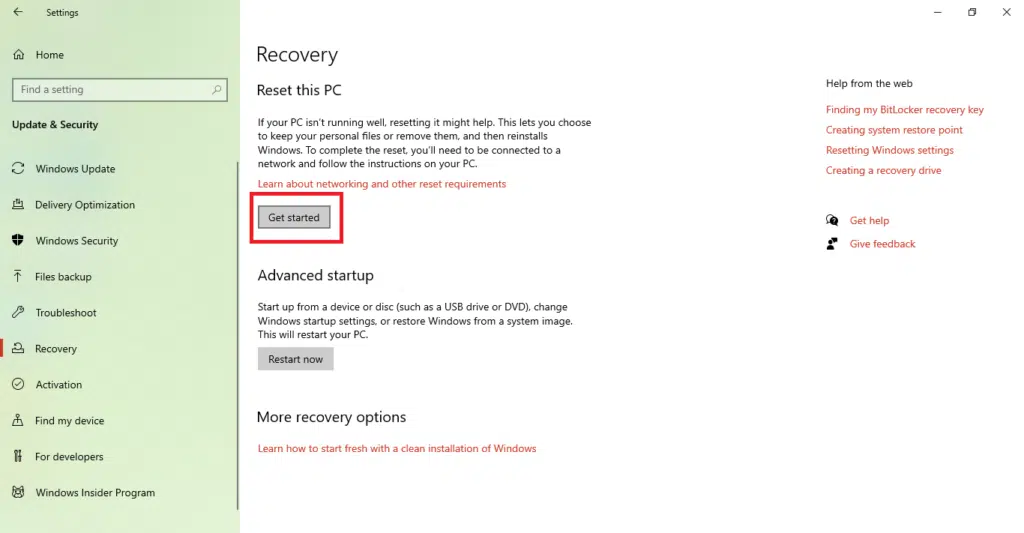
- In the next window, select Keep my files. Note that this preserves your personal data but will remove installed apps and settings
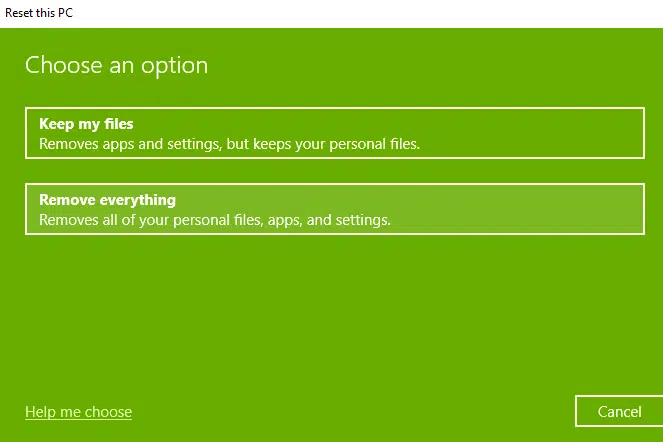
- On the next screen, choose whether you want a cloud download or a Local Reinstall. Select Local Reinstall if you have already downloaded a local copy of Windows; otherwise, go for “Cloud Download”.
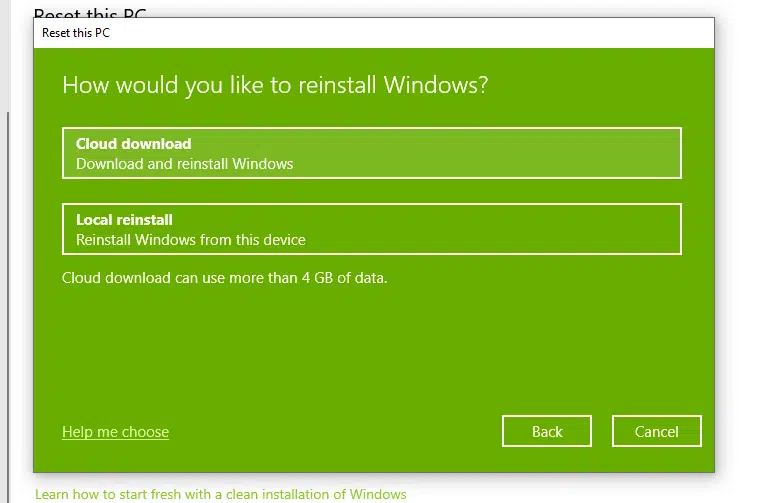
- Click on Next and then ‘Confirm’ to begin the reset process.
It will take some time (depending on your system’s performance) to complete the process. Your computer will restart several times during this process.
After restarting, your PC will function properly, and all errors related to BSOD and DPC Watchdog Violation will be resolved.
Conclusion
You can fix the DPC Watchdog Violation by following the methods listed above. If nothing works, you can reinstall Windows, but keep in mind that you’ll have to set up your apps again afterward. It’s always better to avoid the issues that cause system failures in the first place. If you’re dealing with a problem that isn’t covered here, feel free to ask in the comments, and we’ll try to help as soon as possible.
Also Check: How to Make a Bootable USB for Windows 11